Why the Fire TV Stick takes a few extra steps
Amazon's store does not carry IBO Player, so the app has to be side-loaded using a small utility called Downloader. Nothing here is risky or clever — it is the same procedure Amazon documents for developers — but it involves flipping one security toggle, which is why the process looks longer than it feels.
Every Fire TV Stick generation works, including the Lite, the 4K and the 4K Max. The 4K models obviously matter if you want UHD sport; see the channel list for which feeds carry it.
Have these ready: your Fire TV remote, the Wi-Fi password if the stick is not yet online, and the Tivitron welcome email containing your portal address, username, password and M3U link.
Part one: install the Downloader tool
Step 1 — search for it
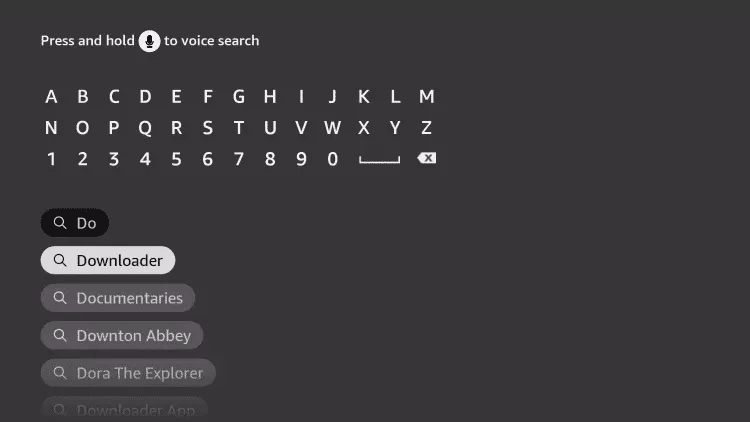
From the Fire TV home screen, move up to the magnifier icon and press select to open the search field. Type the letter D. Downloader appears as the first suggestion — move down to it and press select.
Step 2 — install it
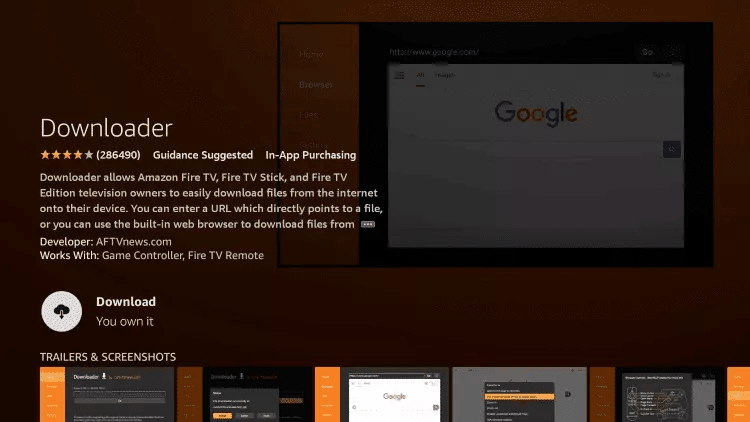
Choose the orange Downloader tile, then press Download. A prompt asks permission to access media on your device — choose Allow. The app needs this to save the installer file.
Step 3 — find it on the home row
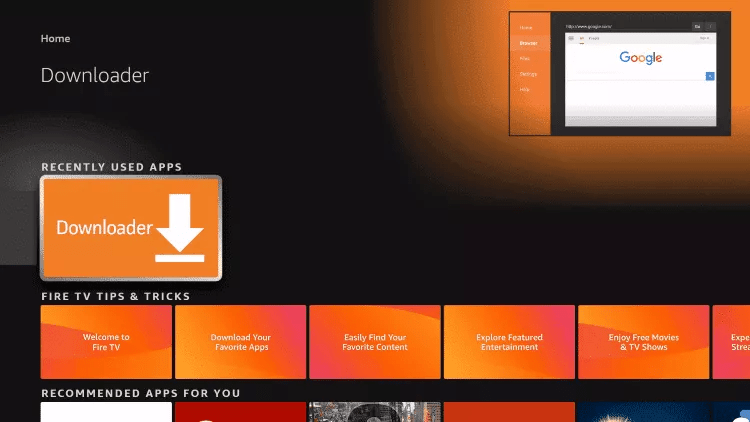
Downloader now sits in your recently used apps. Leave it there for the moment and head to Settings.
Part two: allow installation from outside the store
Step 4 — open Developer options
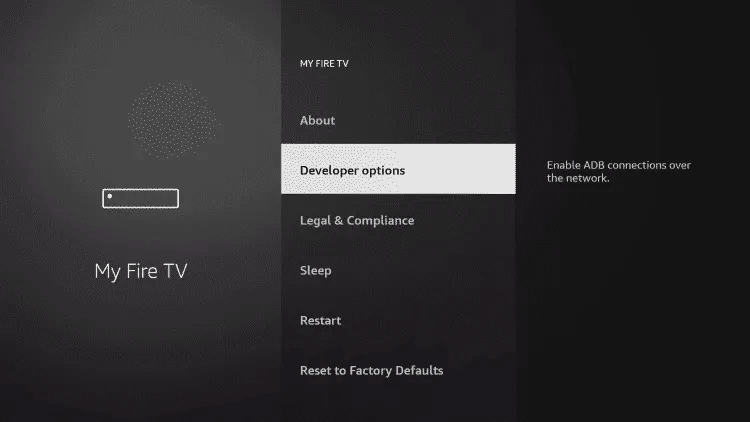
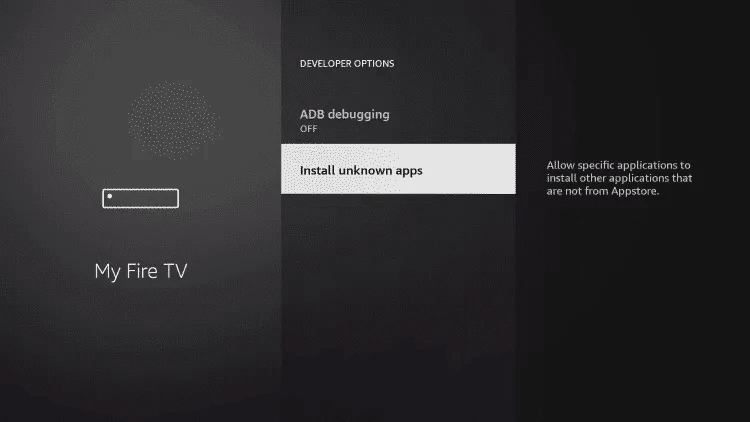
Go to Settings › My Fire TV. You are looking for Developer options. On newer firmware it is hidden: highlight About and press the select button on the remote seven times in a row, and it will appear.
Step 5 — open Install unknown apps
Inside Developer options you will see ADB debugging and Install unknown apps. Leave ADB alone and open the second one.
Step 6 — switch Downloader on
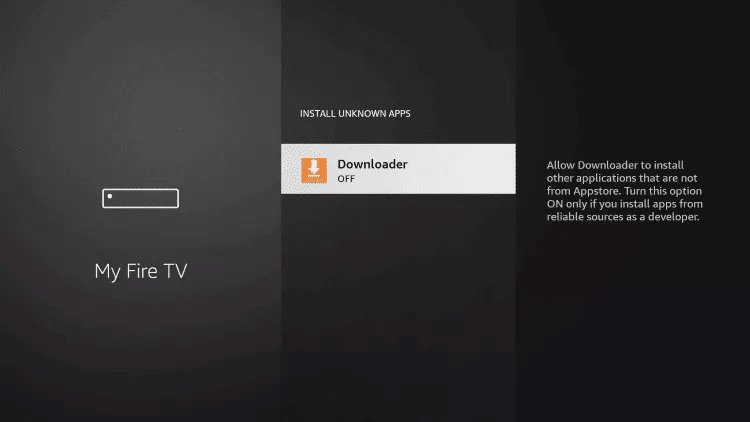
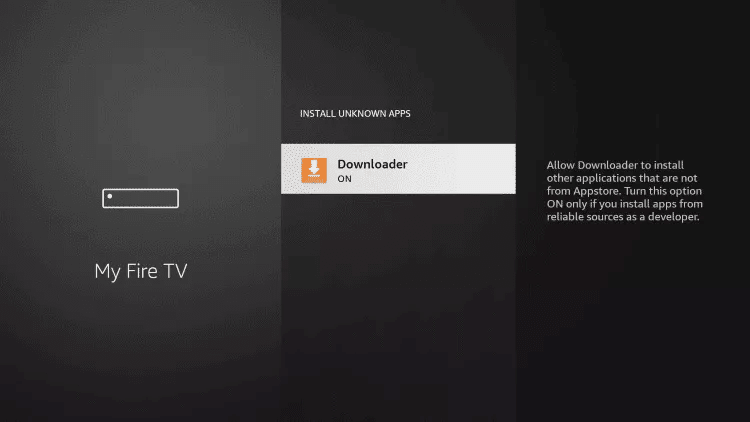
You will see Downloader listed with OFF underneath it. Press select once and it changes to ON. That is the only security setting this process touches, and you can switch it back afterwards if you prefer.
Part three: fetch IBO Player
Step 7 — enter the code
Open Downloader from the home row. Move the selection to the address field above the yellow Go button and press select. Type 511693 — the official Downloader code for the IBO Player Android build — then press Go.
Step 8 — let it download
You will notice Downloader switch to its Browser section while the file arrives from the official site. Do not press anything until the progress bar finishes; interrupting it means starting again.
Step 9 — install and open
The installer is ordinary from here: a couple of Next presses and an Install. When it completes, choose Open, then OK on the welcome message. You can safely delete the installer file when Downloader offers.
Part four: link your Tivitron subscription
IBO Player does not take credentials through the television. It uses remote activation, so the details go onto the IBO portal from your phone or laptop and are pushed down to the stick.
- In IBO Player on the Fire TV Stick, open the person icon and read the Device Info panel: a MAC address and a device key.
- On a phone or computer, open the IBO Player website and choose Manage Playlist. Log in with those two values.
- Choose Add Playlist and paste the M3U link from your Tivitron email, or Add XC Playlist if you were sent a host, username and password separately.
- Save, then restart IBO Player on the stick. The channel groups appear within seconds.
The full version of this step, including the optional XMLTV guide field and playlist PIN, is on the main IBO Player guide.
Getting the best out of a Fire TV Stick
- Use an ethernet adapter if you possibly can. Amazon sells one that plugs into the micro-USB power port. On a stick sitting behind a television, three walls from the router, it is transformative.
- Clear the cache monthly. Fire sticks have very little storage and a full one causes stuttering that looks exactly like a network fault.
- Turn off "Data monitoring" in Fire TV settings. It serves no purpose here and occasionally throttles playback.
- Switch the Live Screen Style inside IBO Player straight away — the default layout crowds the channel names. Instructions are in the layout section.
- Enable auto boot if the stick only ever does this one job, so the app opens with the telly.
Common Fire TV snags
| Symptom | Usual cause and fix |
|---|---|
| Developer options missing | Newer firmware hides it. Highlight About and press select seven times. |
| "App not installed" | Storage is full. Remove an unused app or clear caches, then retry the code. |
| Download stalls at 0% | Downloader lost media permission. Reinstall it and choose Allow at the prompt. |
| App opens but the list is empty | The playlist was saved against a different MAC address. Re-check Device Info against the portal entry. |
| Everything buffers in the evening | Wireless congestion. Try the ethernet adapter before anything else. |
Not on a Fire TV Stick? We have separate walkthroughs for Samsung and LG televisions and for MAG set-top boxes. New to Tivitron altogether? The £6.99 introductory month is the place to begin.